
In our work on visualisations and 3D modelling we use many different file formats. They appear both when creating the final images and when exchanging information between the studio and the client. A well-chosen format saves days of work. A poorly chosen one can stop a project right at the start.
We have divided the formats into three groups. The first is 3D files: the models a visualisation is made from. The second is image files: the finished images that go into a brochure, onto a website or into social media. The third is technical materials, which help the 3D visualiser understand the product or interior.
1.Who sends files to whom
A product visualisation job usually involves four parties: production, the marketing department, the visualisation studio and the advertising agency. Each of them works with different files.
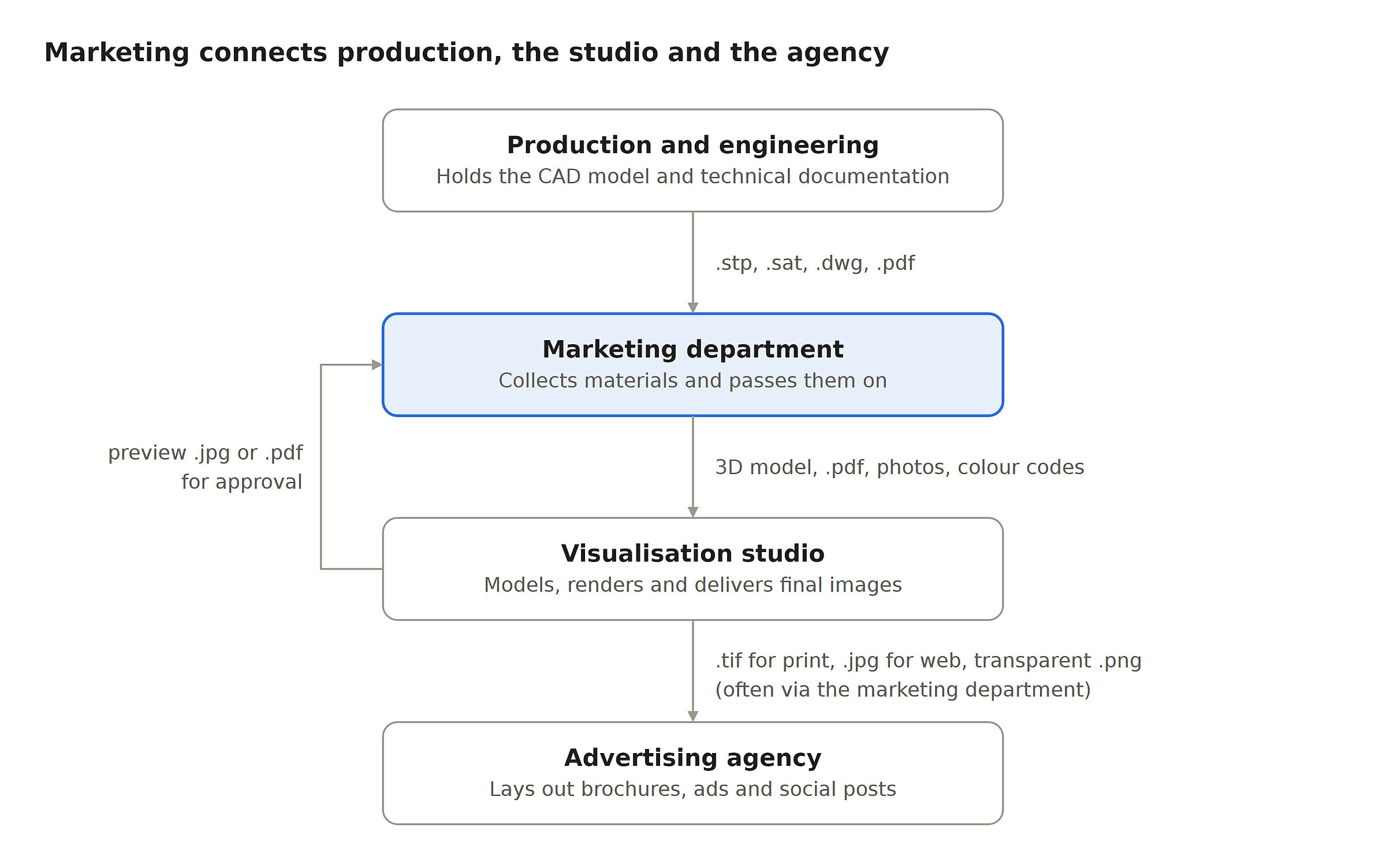
The marketing department usually acts as the go-between in both directions. The better it knows the formats, the fewer questions and revisions there are along the way.
2.3D files: what a visualisation is made from
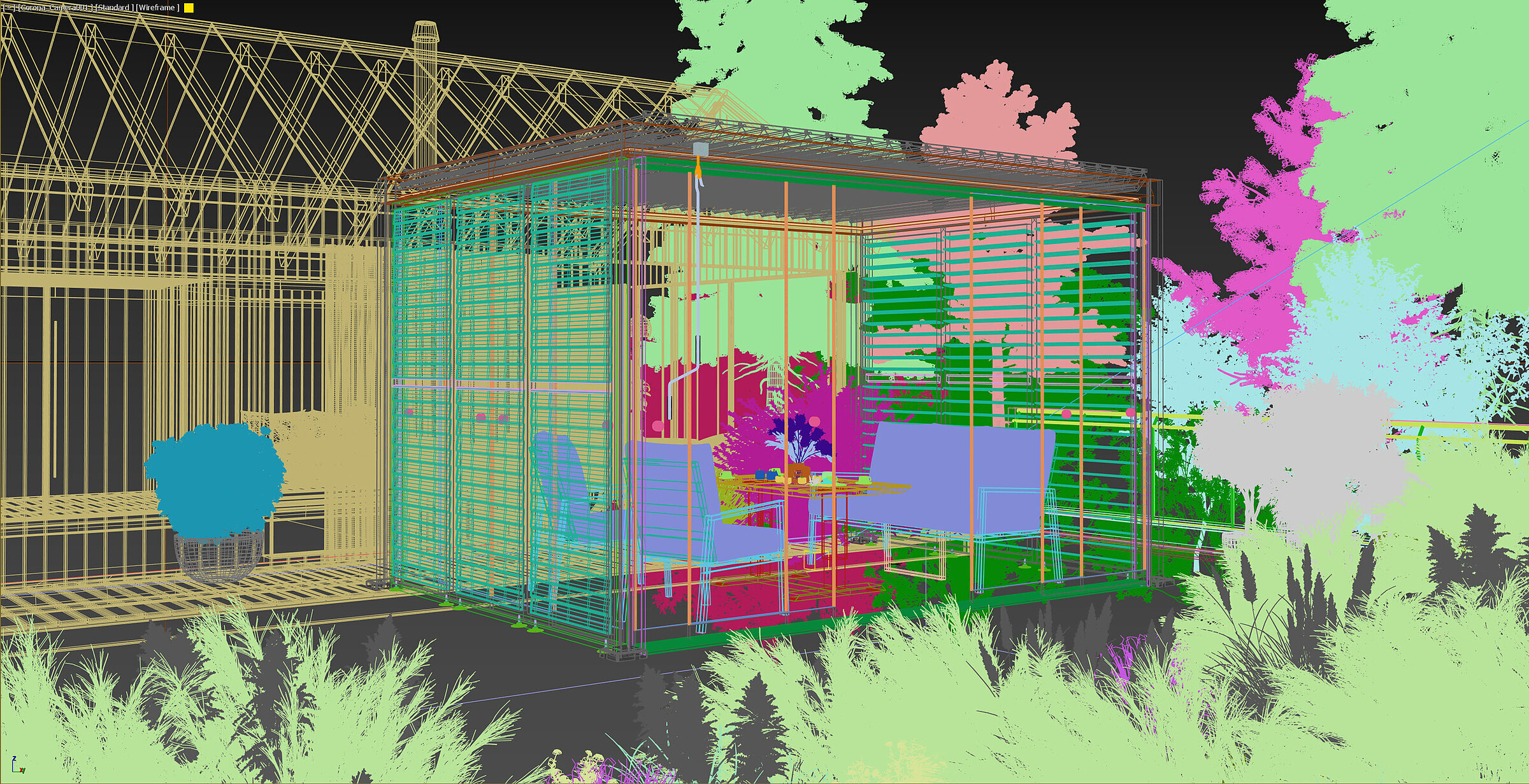
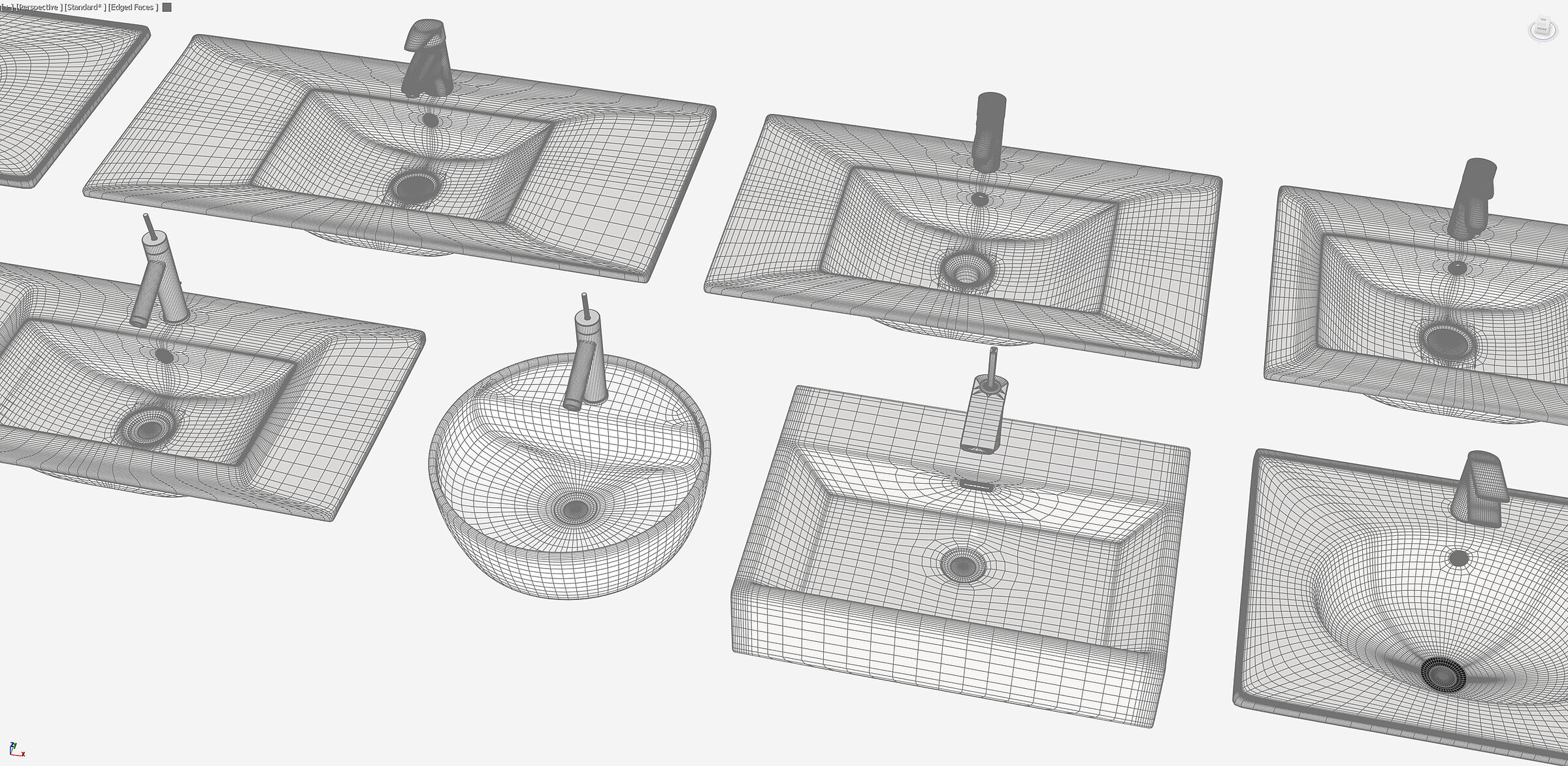
The most important thing to know: 3D models come in two families. The first is CAD solids from design and engineering departments. They describe shape mathematically, accurate to a fraction of a millimetre. The second is meshes: surfaces made up of thousands of small polygons. Visualisation software works with meshes.
The 3D visualiser will convert a CAD solid into a mesh anyway. That is why it is best to receive the original solid and decide how dense a mesh is needed. A ready-made mesh from another program can be too coarse, which shows as faceted edges in close-ups and often requires time-consuming fixes. It can also be too dense, making the file heavy and slow to work with.
.max: the 3ds Max working file
This is the native format of 3ds Max, in which many visualisations are created. It contains the whole scene: models, materials, lights, cameras and render settings. It is the studio’s “kitchen”, not a file for passing on.
Good to know: you can only open a .max file in 3ds Max of the same or a newer version. You also need the same plug-ins, such as the Corona renderer. Without them the scene will open incomplete. In most studios, working files are not part of the standard scope of work. If you need them, for example for later changes by another contractor, agree this before the project starts.
.fbx: the exchange format between 3D programs
Developed by Autodesk and now supported by almost every 3D program and by game engines such as Unreal and Unity. It carries meshes, the object hierarchy, cameras, animation and basic material assignments.
When it is useful: it is our favourite format for importing ready-made models into 3ds Max. If you have such files for your products, you can be sure they will be reproduced accurately in our lifestyle renders and packshots. In turn, we export to this format when a model is going into an online configurator, an AR app, an animation or a web page with a 3D viewer. It is also a good choice when the recipient works in a program other than 3ds Max.
Watch out for: materials assigned to the model only transfer in simplified form. The look from the render won’t carry over one-to-one into another program. It is worth sending the textures separately, in the same folder as the file.
.obj: simple and universal
One of the oldest and most universal mesh formats. Practically every 3D program can open it. It stores the geometry and the texture mapping (UV coordinates).
Watch out for: it stores materials in a separate .mtl file, and the textures are yet more files. When you send an .obj, always send the whole folder, not just the file. The format does not carry animation or a convenient object hierarchy.
.3ds: a legacy format
A format from the days of 3D Studio for DOS. A simple binary format that is still in use. It still turns up in model libraries and older archives. Despite its universality, it has serious limitations, such as around 65,000 vertices per object, very short texture file names (only 8 characters) and relatively little information stored in the file.
Tip: if you have a choice, go for .fbx or .obj. Treat .3ds as a last resort.
.dwg: drawings and models from AutoCAD
AutoCAD’s native format, the standard in architecture and in many manufacturing companies. It can contain 2D drawings, such as plans and sections, as well as 3D solids. We cover drawings in more detail in the section on technical materials.
Watch out for: DWG has many versions. If the visualiser has trouble opening a file, saving it in an older version of the format usually helps. If a drawing uses external references (xrefs), they have to be included. In AutoCAD this is what the eTransmit function is for.
.sat: precise ACIS solids
A format based on the ACIS geometric kernel. Many CAD programs export it, including Inventor, SolidWorks and AutoCAD. It carries precise solids rather than a mesh. 3ds Max imports it directly and lets you adjust the mesh density after import.
When it is useful: industrial products, furniture, hardware and components from the design department. It gives the 3D artist control over the quality of rounded edges and corners.
.igs / .iges: an older standard for exchanging surfaces
One of the oldest CAD data exchange standards. Still popular, but it mainly describes surfaces rather than closed solids.
Watch out for: after import there may be gaps between surfaces, flipped faces or missing parts. Repairing such a model costs time, and therefore money. We recommend avoiding this format, as much better alternatives now exist.
.stp / .step: the best choice from the engineering department
If your engineering department works in SolidWorks, Inventor, CATIA, Creo or Fusion, STEP is usually the safest choice. It is the more modern successor to IGES. It carries closed solids, often with the assembly structure and part names. If you have a choice between .igs and .stp, choose .stp.
Before you send a model from the engineering department
- Check the units: ideally millimetres, with a short note about it in your message.
- Ask your engineer to remove internal parts that won’t be visible in the view or don’t matter for the job. The file will be lighter, and we will spend less time removing irrelevant parts from the model.
- Send the model in its assembled position, with all the parts that are meant to be visible.
- Include a list of materials and colours for the individual parts.
3.Image files: the finished visualisations
A finished visualisation is an image made of pixels. Its quality depends on the number of pixels and on how it is saved. The format is chosen for a specific use, which is why you usually receive the same image in several versions.
.tif / .tiff: the master and print version
Lossless. It can store 16 bits per channel, layers, transparency and CMYK colour. The files are large, often several hundred megabytes. Print materials are always better prepared from TIFF than from JPG.
When it is useful: brochures, catalogues, posters and large-format prints. Also as an archive master copy from which you can always make further versions.
Good to know: visualisations are created in the RGB colour space, while print uses CMYK. The conversion can be done by the printer, the agency or the visualisation studio itself. When the studio does it, you receive a ready CMYK file with colours checked and adjusted for print, so the agency doesn’t need to change anything in the colours. The colour profile is chosen for the type of paper. In Poland the standard is FOGRA39 for coated paper and FOGRA29 for uncoated paper. The newer FOGRA51 and FOGRA52 standards are also gradually coming into use. It is worth agreeing in advance who is responsible for colour and checking which paper the job will be printed on.
.jpg / .jpeg: web, email and previews
Lossy compression. The file is small, and at high quality settings the difference is invisible to the naked eye. It works very well on websites, in social media and for quick approval of views.
Watch out for: every time a JPG is re-saved, the image degrades slightly. If the agency is going to retouch it or add text, give it a TIFF or PNG. JPG does not support transparency.
.png: transparent backgrounds and lossless saving
Lossless, with support for transparency (the alpha channel). It lets you get a product “cut out” from its background, ready to place on any colour or photo.
When it is useful: online shops, catalogues with products on a plain background, and banners and posts where the product sits on a graphic.
Watch out for: the files are noticeably larger than JPG. PNG does not support CMYK, so conversion is needed for print anyway.
.webp and .avif: lighter images for the web
These are modern formats designed for the web. At similar image quality the files are noticeably smaller than JPG, and in the case of AVIF often by as much as half. Both also support transparency, so they can replace heavy PNG files. Lighter images mean a faster website, which both users and Google appreciate.
When it is useful: product galleries, online shops and websites with many visualisations. All modern browsers now display both formats.
Watch out for: these are formats for publishing, not for further work. They are not suitable for print or as a master copy. Some graphics programs and platforms still support them poorly. The conversion is usually done by the website itself or by the agency, from a JPG, PNG or TIFF file. If your website doesn’t do this, the studio can prepare these versions on request.
Resolution: it’s pixels that count, not dpi
The dpi value on its own says little about quality. What counts is the number of pixels relative to the size of the print. For prints viewed up close, around 300 pixels per inch is the norm. An A4 page then needs about 2480 × 3508 px. A billboard viewed from a distance needs far fewer pixels per inch.
For the web, an image 1920 to 2560 px wide is usually enough. The sizes recommended by social media change from time to time, so it is best to ask your agency for the current figures.
The most common problem, however, is framing, not resolution. You can’t crop a landscape image into a vertical reel without losing content. If a visualisation is going into a brochure, onto a banner and onto Instagram, say so before rendering. The visualiser will set up the camera so that the image can be cropped safely, or prepare separate views.
At an advertising agency’s request, the studio can also supply .exr files with separate render passes, useful for advanced post-production.

4.Technical materials: .pdf and .dwg
The better the materials at the start, the fewer revisions and the lower the cost of the whole job. Above all, the visualiser needs dimensions, materials and colours.
.pdf: the universal carrier for documentation
Anyone can open it, on any device. It is suitable for dimensioned drawings, product sheets, catalogues, material lists and mood boards. It also works well for approvals, when views need to be commented on in one place.
Watch out for: it is hard to read dimensions from a PDF if nobody has marked them. A drawing without dimensions or a poor scan is only a rough guide for a 3D artist.
.dwg: the drawings models are built from
For interiors and architecture, DWG is far better than PDF. The visualiser imports the plan straight into the 3D program and builds the walls at exact scale. This saves time and eliminates errors when copying dimensions.
It is best to send both files: the DWG to work from and the PDF as a readable preview. That makes it easy to check that the 3D artist sees the same thing as the author of the drawing.
What else does a 3D artist need?
- Colour codes (RAL, NCS, Pantone) or the manufacturer’s names for finishes and fabrics.
- Photos of the real product or material samples, taken in daylight.
- Example photos or visualisations whose mood and style you like.
- Information about where the image will be used and in which formats.
5.Cheat sheet: which format for which job?
| Job | Format | Why |
|---|---|---|
| Model from the design department | .stp or .sat (as a last resort .igs) | Precise solid, control over mesh quality |
| Model from another 3D program | .fbx or .obj with textures | Universal meshes, readable everywhere |
| Configurator, AR, animation | .fbx | Carries hierarchy, cameras and animation |
| Apartment or building floor plan | .dwg and .pdf | DWG for modelling, PDF for preview |
| Product sheet, dimensions, materials | Readable by anyone | |
| Print: brochure, catalogue, poster | .tif | Lossless, ready for prepress |
| Website, email, social media | .jpg | Small file, very good quality |
| Fast website, online shop | .webp or .avif | Smaller files at the same quality |
| Product on a transparent background | .png | Supports transparency |
| Later changes to the scene | .max (by agreement) | Requires 3ds Max and the same plug-ins |
6.Seven rules for smooth collaboration
- Ask your engineering department for a STEP or SAT file. A screenshot from a CAD program is not a model.
- Send everything together: the model, textures, drawings and a description of materials in one folder or .zip archive.
- Send large files via cloud storage or a file transfer service, not as an email attachment.
- Agree the list of output files at the start, e.g. TIFF for print, JPG for the web and PNG with a transparent background.
- State the intended uses and aspect ratios before the renders are made.
- Name files clearly and with a version number, e.g. lotos-armchair_v03_front-view.jpg.
- Decide in advance whether you need the .max working files.
“You don’t need to know every format by heart. You just need to know what to ask.”
If you’re not sure, send what you have and ask whether it’s enough. A good contractor will tell you which file they need and how to get it within your company.